Project Preview
0xMinds lets you see your project before deploying.
Preview Tab
In the project workspace, click the Preview tab to see your project:
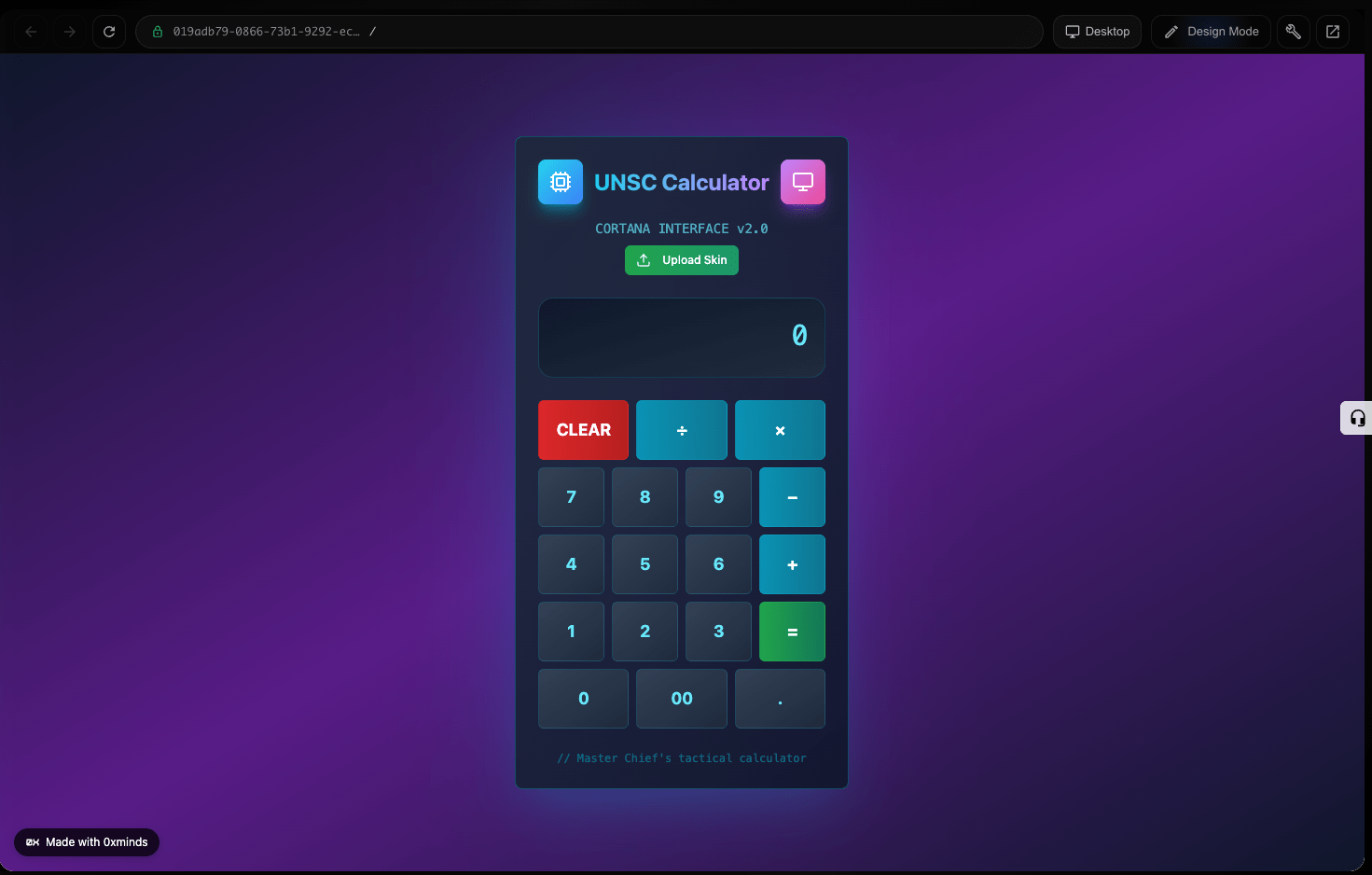
- Website: Your site displays like a browser
- Instant changes: Every code change is immediately visible in preview
Using Preview
View
Just see how it works
Test
Click buttons, fill forms
Debug
If you see an issue, say in chat:
"Button doesn't work, fix it"
Console
At the bottom of preview, you see the console:
- Logs:
console.logmessages - Errors: JavaScript errors
- Warnings: Code warnings
info
Console is useful for debugging and fixing issues.
Design Mode
In design mode you can change without coding:

- Enter design mode
- Click on any element
- Change color, font, size
- Changes save to code
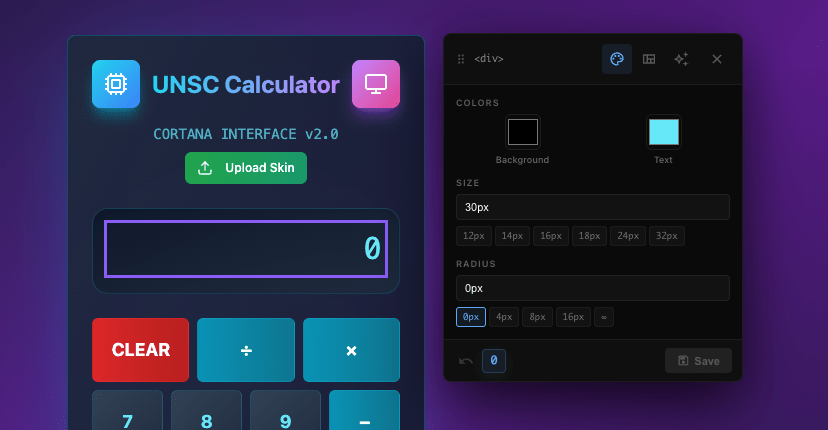
Changeable
- Colors
- Fonts
- Spacing
- Text
- Sizes
Mobile Preview
You can view project in different sizes:
- Desktop
- Tablet
- Mobile
To change size, use buttons above preview.